 Credit: Lucas Gouveia / Android Police
 By
Anu Joy
Published Jan 25, 2026, 8:30 AM EST
Anu is a Features author at Android Police. You'll find her writing in-depth pieces about automation tools, productivity apps, and explainers.
Before joining AP, she used to write for prominent tech publications like iJunkie and Gizbot.
In her free time, you can find her making digital illustrations, playing video games, watching horror movies, or re-reading the classics.
Sign in to your Android Police account
Add Us On
Summary
Generate a summary of this story
follow
Follow
followed
Followed
Like
Like
Thread
Log in
Here is a fact-based summary of the story contents:
Try something different:
Show me the facts
Explain it like I’m 5
Give me a lighthearted recap
By
Anu Joy
Published Jan 25, 2026, 8:30 AM EST
Anu is a Features author at Android Police. You'll find her writing in-depth pieces about automation tools, productivity apps, and explainers.
Before joining AP, she used to write for prominent tech publications like iJunkie and Gizbot.
In her free time, you can find her making digital illustrations, playing video games, watching horror movies, or re-reading the classics.
Sign in to your Android Police account
Add Us On
Summary
Generate a summary of this story
follow
Follow
followed
Followed
Like
Like
Thread
Log in
Here is a fact-based summary of the story contents:
Try something different:
Show me the facts
Explain it like I’m 5
Give me a lighthearted recap
Gboard has been my default keyboard across multiple phones, Android versions, and resets.
I never questioned it, mostly because I assumed a keyboard was something you set up and forget. If typing felt a little off, I blamed my thumbs or the screen size.
It turns out the problem wasn’t my typing. I was using Gboard wrong, and a handful of small, easy-to-miss mistakes were slowing me down every day.
 Related
7 time-saving features on Android that helped me reclaim hours every week
Related
7 time-saving features on Android that helped me reclaim hours every week
These features have genuinely sped up my daily tasks
Posts 2 By Anu JoyLeaving the toolbar untouched
 Close
Close
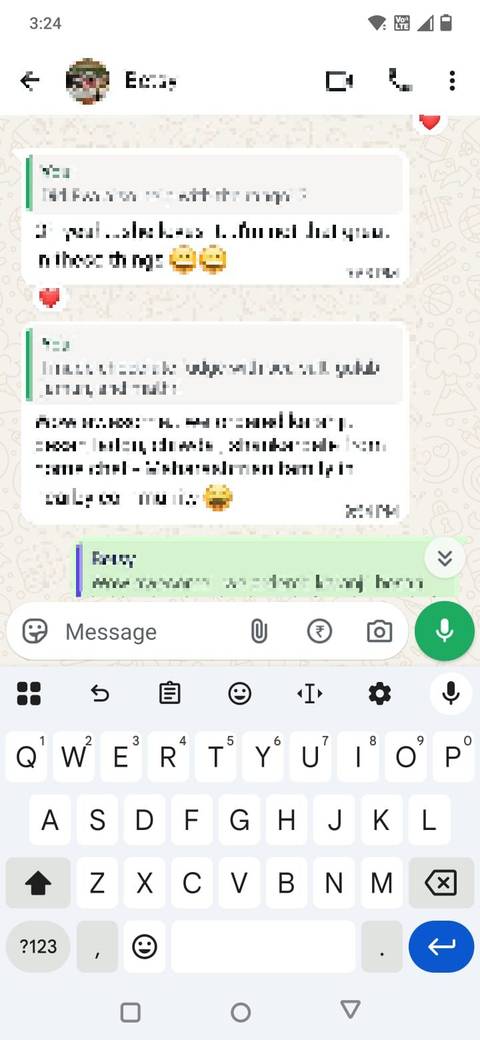
Gboard’s toolbar is easy to ignore. I let it stay cluttered with features I didn’t use while the ones I needed stayed buried.
Over time, the toolbar filled up with shortcuts I didn’t need: GIFs, stickers, the clipboard, and emoji variations. None of these features is bad, but having all of them visible made the keyboard feel too busy.
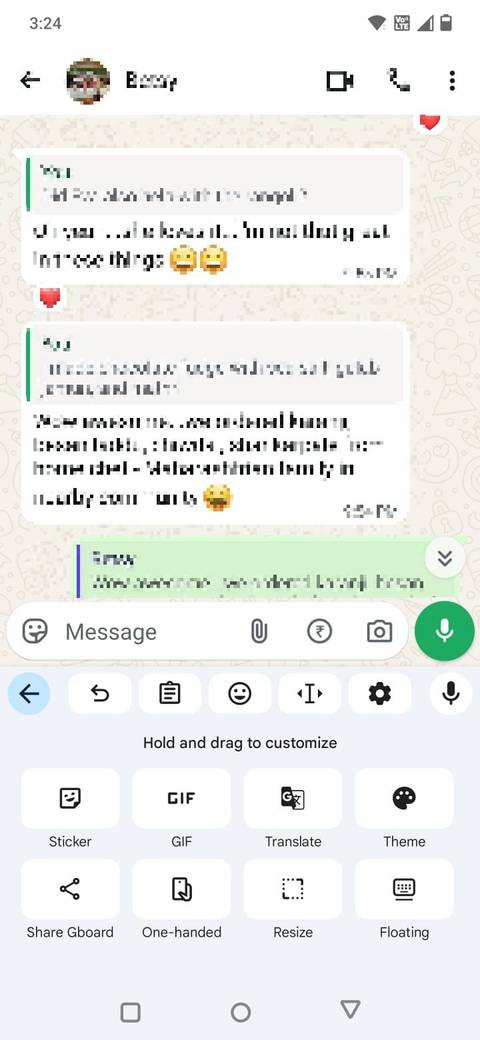
To customize it, tap the four-square grid icon on the keyboard to open the full shortcuts menu. From there, long-press any icon and drag it up to the toolbar.
Gboard lets you keep up to six icons visible at once. The six options I keep on my toolbar are: Undo, Clipboard, Emoji, Text editing, Settings, and Voice typing.
Just as important as what I keep is where I place them. I arrange the icons in the exact order I use them most, so my thumb doesn’t have to hunt.
Clipboard comes first, and voice typing is always one tap away when I’m walking or multitasking.
With fewer icons competing for attention and the most-used tools always in the same place, typing feels smoother and more deliberate.
I didn’t realize Gboard had an undo button
 Close
Close
For the longest time, if I accidentally wiped out a sentence, my only option was to retype it from memory.
I didn’t realize Gboard had a way to undo mistakes because I’d never gone looking for it.
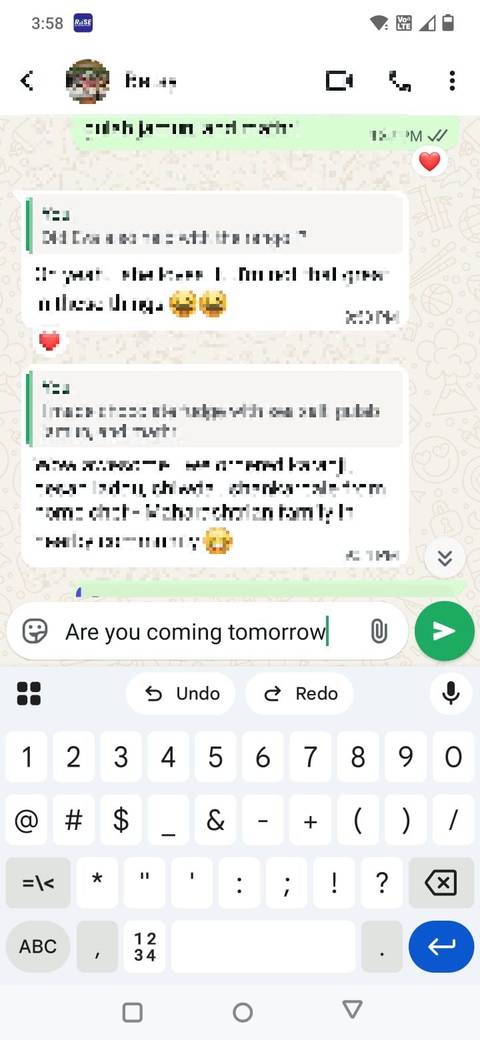
After deleting a sentence or a chunk of text, you can open the four-square grid icon and tap Undo to restore what you just removed.
Gboard also places a Redo button right next to it, making it easy to reverse the undo if you change your mind.
There’s an even quicker way to do this. Instead of lifting your thumb immediately after deleting text, hold the Backspace key for a couple of extra seconds.
Gboard will automatically display the undo option, letting you recover the deleted text without opening the menu.
After the text is restored, Gboard immediately offers a Redo option in the suggestion bar, so you can flip back if needed.
It isn’t a feature you’ll use constantly, but when you need it, it saves real time. It turns small mistakes into non-events and makes typing feel more forgiving.
After I started using undo instead of retyping everything, I wondered how I ever managed without it.
I ignored the personal dictionary
 Close
Close
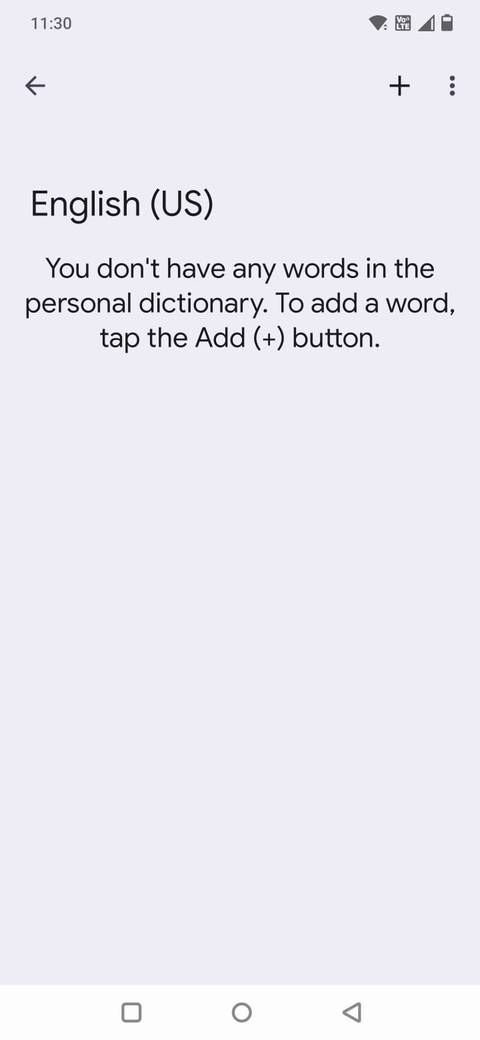
The personal dictionary is where Gboard learns names you often use, abbreviations you type daily, slang, work terms, and email sign-offs.
By ignoring it, I was forcing Gboard to guess every single time, and it kept guessing incorrectly.
The most obvious offenders were names and technical terms. Gboard would “correct” them into something else, and I’d have to retype the words again and again.
After I started adding entries manually, the difference was immediate.
Words I use regularly began appearing as first suggestions instead of errors. I stopped breaking my typing flow to fix the same mistakes repeatedly.
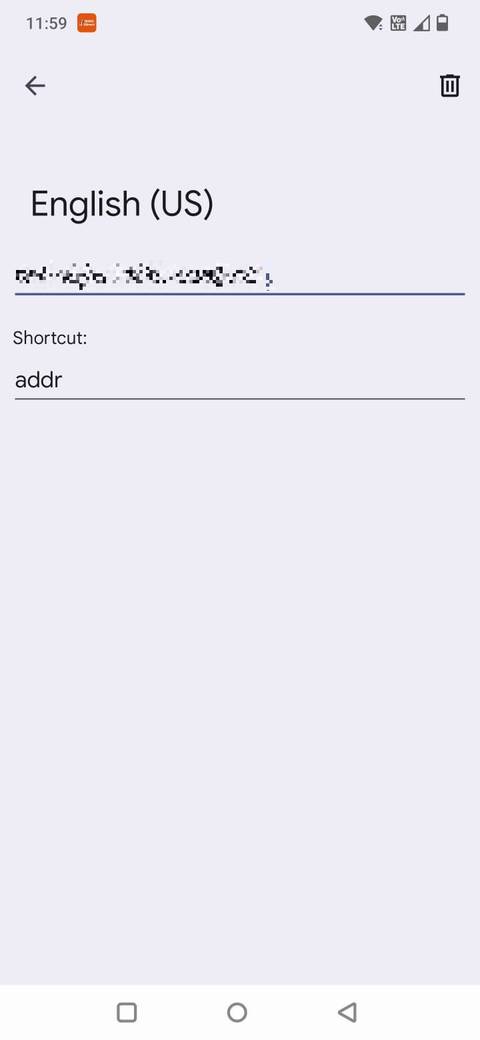
Adding words is straightforward. You can do it from Settings > Dictionary > Personal dictionary. You can also assign shortcuts, where typing a few letters expands into a longer phrase.
I find it especially useful for email addresses, standard replies, or commonly used phrases.
I kept retyping things I should’ve saved
 Credit: Lucas Gouveia / Android Police
Before I paid attention to Gboard’s clipboard, I was retyping far too much.
I was retyping email addresses, tracking numbers, standard replies, or snippets of text I use across apps far more often than I needed to.
Sometimes I’d dig through old messages to copy the same thing again, even though Gboard already had a place for it.
To use it, tap the clipboard icon in Gboard’s toolbar to see everything you’ve copied recently.
The clipboard in Gboard isn’t just a short-lived buffer. You can pin items so they stay available, even after copying something else.
To save an item, open the clipboard, long-press the text you want to keep, and tap Pin. Pinned items stay at the top of the clipboard, even after you copy something new.
After I started pinning frequently used text, my typing flow changed immediately. Common phrases were always one tap away.
Subscribe to the newsletter for practical Gboard tips
Curious for more hands-on guidance? Subscribe to the newsletter for actionable tips, hidden-feature walkthroughs, and settings tweaks across keyboards and everyday apps - more coverage like this to help you discover and apply useful features. Subscribe By subscribing, you agree to receive newsletter and marketing emails, and accept Valnet’s Terms of Use and Privacy Policy. You can unsubscribe anytime.It also works quietly in the background. Anything you copy appears in the clipboard automatically, so there’s no setup or extra step.
If you can’t find any of the options mentioned here on your toolbar, tap the four-grid menu icon on the keyboard to open the full shortcuts panel.
I slept on Gboard's voice typing feature
 Close
Close
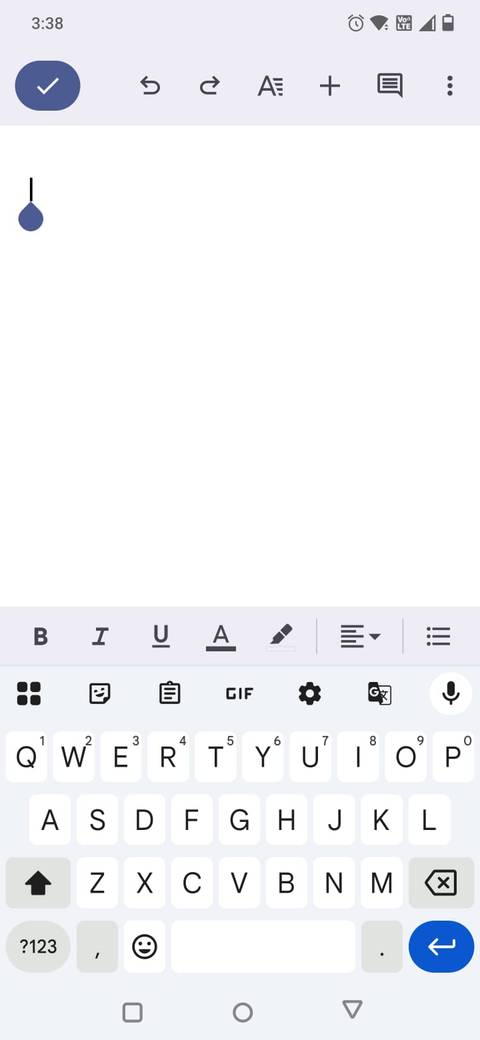
For a long time, I wrote off voice typing as unreliable. It felt awkward and slower than just typing things out myself. However, those assumptions didn’t age well.
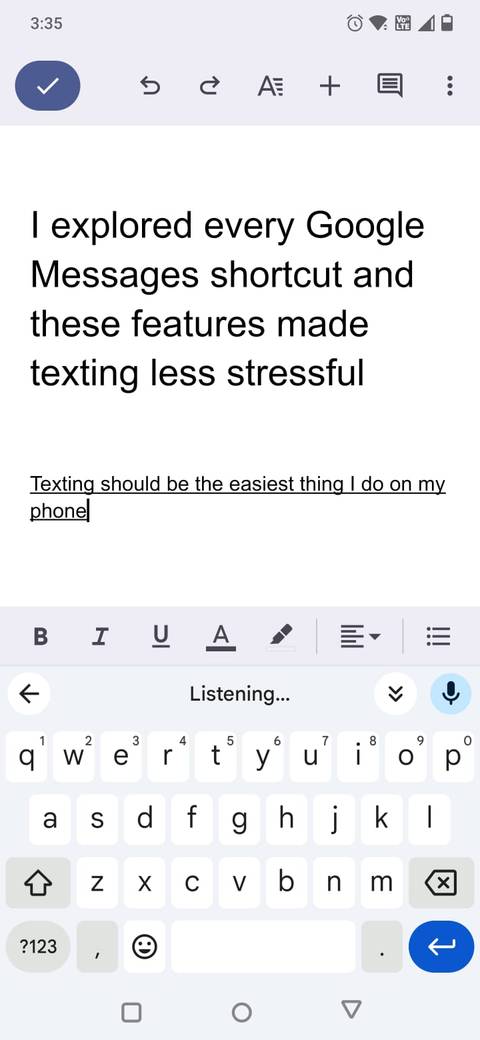
Voice typing in Gboard is now fast and surprisingly accurate, especially for short messages, longer replies, or moments when typing isn’t convenient.
It became one of the quickest ways to get words down without breaking focus.
It’s also easy to access. Tap the microphone icon on the keyboard and start speaking.
I don’t use voice typing everywhere. It’s not ideal in public spaces or for sensitive messages.
But when I’m walking, cooking, or trying to reply quickly without full attention on my screen, it’s often the fastest option available.
 Related
I tried a weird 16-key keyboard, and it made me rethink phone typing
Related
I tried a weird 16-key keyboard, and it made me rethink phone typing
26 letters, but only 16 keys?
Posts 28 By Andy BoxallTyping on my phone finally feels faster
Fixing my typing experience didn’t mean switching keyboards or installing new tools.
After I cleaned up the toolbar, used the clipboard properly, started using voice typing, and learned how undo works, my typing experience felt smoother.
Now, typing on my phone feels faster and far less annoying.
Follow Followed Like Share Facebook X WhatsApp Threads Bluesky LinkedIn Reddit Flipboard Copy link Email Close Trending Now What is Roblox? Navigate the popular game creation platform with ease
 I turned Gmail into a lightweight task manager and finally ditched my to-do apps — here's how
 The Good Lock module I forced myself to learn — and now can't use a Galaxy without